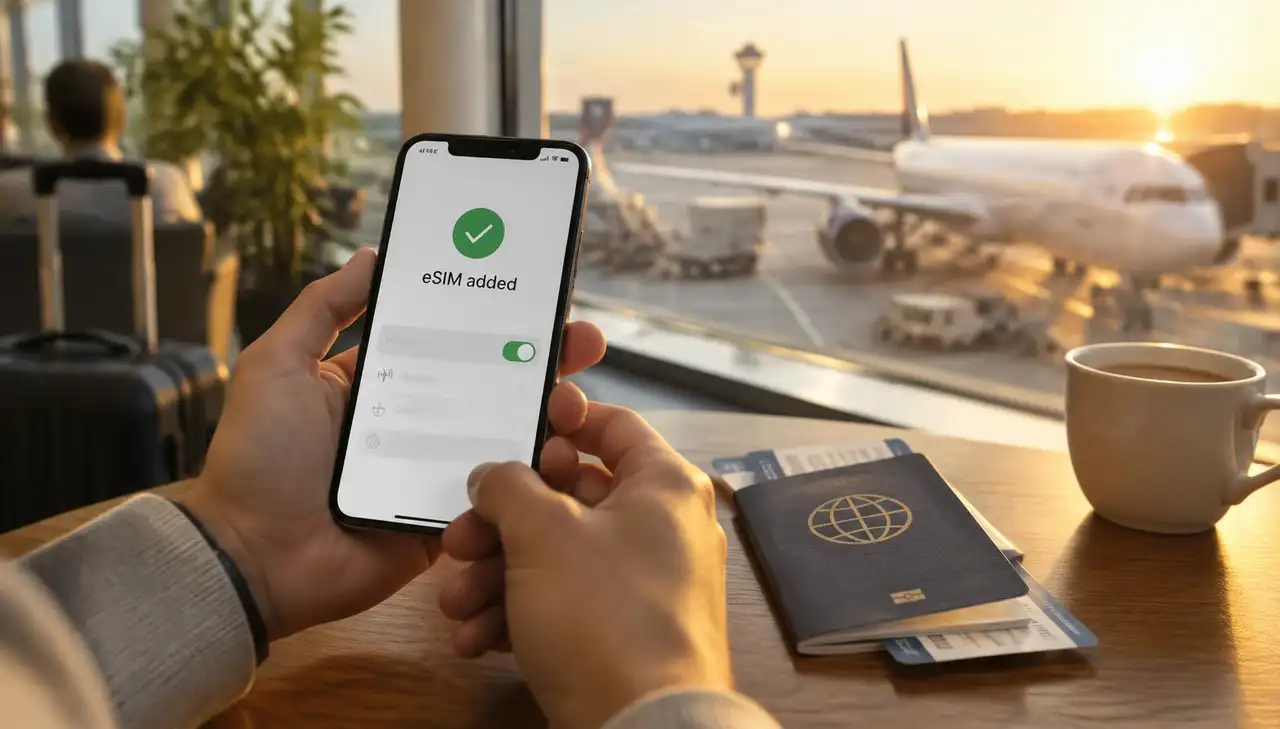
Wondering how to activate an eSIM? Follow these simple steps for iPhone, Samsung and Google Pixel, learn how long activation takes and fix the most common issues.
An eSIM is a digital SIM that connects your phone to a mobile plan without a plastic card. No store visit, no tiny SIM tray, no paperclip. But the first time you set one up, it is normal to wonder what to press and in which order. This guide shows you how to activate an eSIM on iPhone, Samsung Galaxy and Google Pixel, what to check before you start and what to do if activation stalls.
The screens differ a little per phone, but the flow is almost always the same: check compatibility, get your eSIM details, install the plan, then test your data. New to eSIMs? Start with How do eSIMs work? for the basics.
Before you begin, make sure of three things: your phone supports eSIM, it is not locked to one carrier, and you are connected to Wi-Fi. Activation needs internet because your phone downloads a small, secure profile. Not sure about your device? Check our list of compatible devices.
Your provider will give you an activation method. With JamboSim that is a QR code, or a one tap install in the JamboSim app for iPhone and Android. Other options you may come across are a carrier app, an install link or manual activation details (an SM-DP+ address and activation code).
A quick checklist prevents the most common mistakes:
Unlocked phone: a carrier locked phone will refuse a travel eSIM from another provider. Updated software: install the latest iOS or Android version first, especially on a new or reset phone. Strong Wi-Fi: a stable connection so the profile downloads without interruption. Keep your home SIM: do not remove your main SIM or eSIM. You still want it for calls and two factor codes. Save your QR code: keep the activation email until data works.
If you are asking "e SIM how to activate", think of it this way: your phone downloads a mobile plan and stores it next to your existing SIM.
After you buy a plan, you receive your QR code by email and in your account. You can also find every eSIM in the app under My eSIMs.
On iPhone, go to Settings Mobile Data (or Cellular). On Google Pixel, go to Settings Network & internet SIMs Add SIM. On Samsung Galaxy, go to Settings Connections SIM manager Add eSIM.
Scan the QR code when your phone asks for it. Show the code on a second screen, such as a laptop, so your camera can read it. Only have one device? Use the in-app install or enter the details manually.
Give the new line a clear name, like "Travel". Then choose which line handles what. For travel, a common setup is: mobile data on the travel eSIM, calls and texts on your home number.
Restart your phone if it asks you to. When you are at your destination, turn off Wi-Fi for a moment and open a website. If pages load over mobile data, your eSIM is active.
Searching for how to activate e sim in iPhone? Here is the practical flow:
1. Connect your iPhone to Wi-Fi. 2. Open Settings Mobile Data and tap Add eSIM. 3. Choose Use QR Code and scan your code, or tap the install button in the app. 4. Follow the prompts and tap Continue to download the plan. 5. Label the plan, for example "Travel". 6. Choose your default line for mobile data and keep your home number for calls and iMessage. 7. At your destination, switch on Data Roaming for the travel eSIM only.
Tip: avoid deleting and reinstalling the eSIM over and over. Most QR codes work only once, so a deleted profile usually cannot be scanned again. Step by step screenshots are in our setup guide.
Android steps vary by brand, but the idea is the same: open SIM settings, add an eSIM and download the profile.
Google Pixel:
1. Open Settings. 2. Tap Network & internet, then SIMs. 3. Tap Add SIM and choose Set up an eSIM (or Download a SIM instead?). 4. Scan the QR code and follow the steps on screen.
Samsung Galaxy:
1. Open Settings. 2. Tap Connections, then SIM manager. 3. Tap Add eSIM and choose Scan QR code from service provider. 4. Scan the code, confirm, and restart if prompted.
Can your phone not find the plan? That rarely means the phone is broken. Usually the QR code was already used, the internet dropped during the download, or the phone is locked. Get in touch with our support team and we will help you out.
How long does it take e sim to activate? Installing the profile usually takes one to five minutes on good Wi-Fi. Service activation is a separate step: the plan connects to the local network once you arrive at your destination and data roaming is switched on for that line.
So it is normal if your travel eSIM shows "No Service" at home. That simply means you are not in the country of your plan yet. This is also why we recommend installing your eSIM a day or two before you fly, while you still have reliable Wi-Fi.
Installed, but still no data at your destination? Try these checks:
Make sure the eSIM line is switched on. Check that mobile data is set to the travel eSIM. Turn on Data Roaming for the travel eSIM. Turn airplane mode on for 15 seconds, then off again. Restart your phone once. Select a network manually in your network settings.
Still stuck? Our blog eSIM not working? 10 common issues covers the rest, including APN settings.
| Problem | Likely cause | Fix | |---|---|---| | QR code will not scan | Code shown on the same phone, or low screen brightness | Show it on another screen, or install through the app | | "Unable to add eSIM" | Phone locked to a carrier, or weak Wi-Fi | Check the lock status, move closer to your router | | "No Service" at home | Plan only works in the destination country | Normal: it connects when you land | | No data at destination | Data roaming off or wrong line selected | Turn on roaming, set data to the travel eSIM | | eSIM accidentally deleted | Profile removed from the phone | Contact support, most codes cannot be reused |
A VPN can also get in the way of the download. Switch it off during setup and turn it back on afterwards.
Once active, an eSIM works just like a physical SIM. You can browse, stream, use maps and make WhatsApp calls, and use your phone as a hotspot where your plan allows it. The difference is that your plan lives as a digital profile on your phone.
Wondering how to use eSIM for travel without surprises? Keep these habits:
Name each line clearly, such as "Home" and "Travel". Roaming off on your home SIM to avoid charges from your home carrier. Keep the app installed to see your remaining data and top up when needed. Estimate your data with the data usage calculator before you buy. Do not delete the profile until you are sure you no longer need it. Erase eSIMs before you sell or give away your phone.
Learning how to activate an eSIM mostly comes down to matching your phone's setup path with your activation method. iPhone, Pixel and Samsung all guide you through it. Prepare on Wi-Fi at home, follow the prompts, set your data to the right line and keep your home SIM installed.
Ready for your next trip? Browse our destinations, or pick a regional plan like Europe or Global and have your eSIM installed in minutes.
How do I activate an eSIM on my iPhone? Go to Settings Mobile Data Add eSIM, scan your QR code and follow the prompts. Then set mobile data to the new line.
Can I install my eSIM before I travel? Yes, and we recommend it. Install it at home on Wi-Fi, and it connects once you arrive at your destination.
How long does it take an eSIM to activate? Installation usually takes a few minutes. The plan connects to the local network when you arrive and switch on data roaming.
Can I use my eSIM and my regular SIM at the same time? Yes. Most eSIM phones support two lines, so you can use data on your travel eSIM and keep your home number for calls and texts.
What if I deleted my eSIM by accident? Contact our support team. Most QR codes work only once, so we will check what is possible for your plan.
For a longer walkthrough with screenshots, see How to install and activate an eSIM on iPhone and Android.